How to Install Forsaken World: Wizard
Step-by-step guide for new players: download the smart installer, install the client, pick your language, check the version, and jump into the game. Around 8 GB of free disk space is all you need.
Forsaken World: Wizard — How to Install the Client
If you've just decided to jump into the game and don't know where to start — this article is for you. You'll want around 8 GB of free disk space and a bit of time for the download. The guide covers everything: from grabbing the installer to the moment you click PLAY and step into the world of Eyrda.
Where to Download
The ready-to-use installer lives here: https://fw-wizard.com/files/Wizard_Installer.exe
This is a small file (~209 MB) — a smart installer that downloads the rest of the client for you and keeps it up to date. The Downloads page on the site also offers the full client archive (~11.8 GB) through cloud mirrors, for those who'd rather grab everything in one go. For most players we recommend the installer — it's more convenient, resumes from where it broke off if your connection drops, and registers everything properly.
If you go the archive route instead, just unzip it with WinRAR or 7-Zip into any folder.
System requirements at a glance: 512 MB RAM minimum (2 GB recommended), about 8 GB of free storage, and a basic broadband connection. Almost any modern PC will run it comfortably.
Installation
You run Wizard_Installer.exe, pick a folder, hit Install. After that you can go make some tea — on a normal connection the full download takes 20–40 minutes, on a slow connection up to a couple of hours. If your internet drops mid-download, nothing terrible happens: just relaunch the installer and it'll pick up where it left off.
When everything is downloaded, open the folder where you installed it. You'll see something roughly like this:
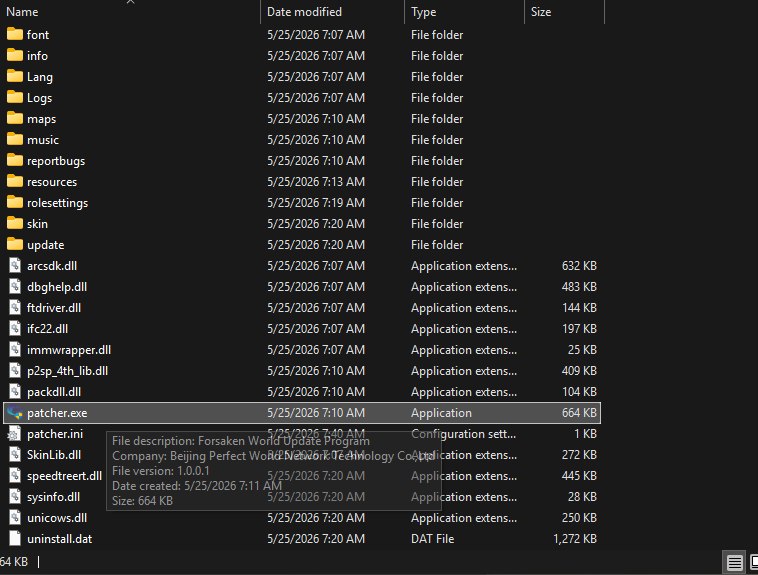
There's only one file you actually need — patcher.exe (the tooltip will say Forsaken World Update Program). This is your entry point into the game. Every time you launch it, it checks for and downloads any updates automatically.
Always start the game through
patcher.exe— not throughupdate/PEM.exedirectly. PEM is the game engine itself, but launched on its own it won't receive the right settings or the latest patch. Two clicks on patcher, and you're set.
First Launch and Language Selection
When you launch patcher for the first time, a small window appears:
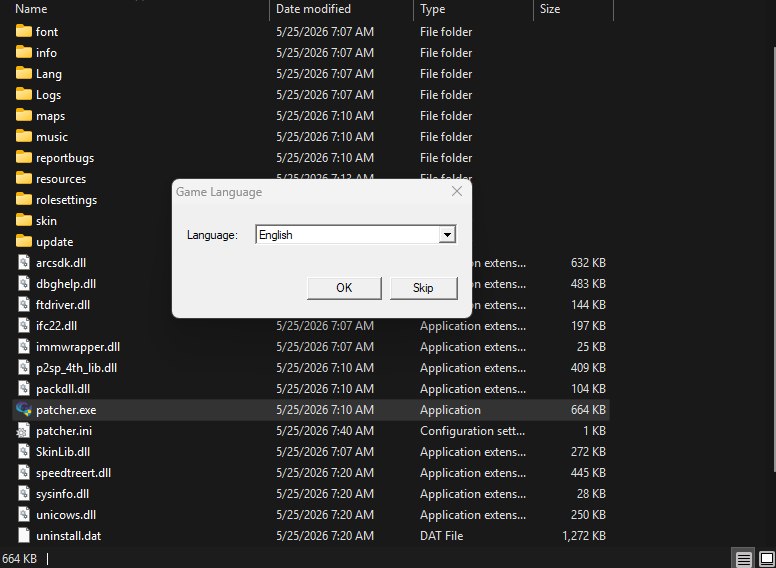
Here you pick the language you want to play in, just once. English is the default — if that suits you, just hit Skip right away and the client continues without any extra waiting.
Four languages are fully available today: English, Русский (Russian), Español (Spanish), and Português (Portuguese). Українська (Ukrainian), Deutsch (German), and Français (French) are in active development and on the way.
If you pick a language other than English, patcher immediately starts downloading the matching language pack (a few hundred MB). A progress bar appears at the bottom of the launcher — wait for it to finish and the client automatically switches to your language.
The language window pops up only once. Patcher remembers your choice and won't ask again on later launches.
If You Changed Your Mind About the Language
Changing language after the initial pick is done through Settings. In the launcher's right panel, click the Settings button, and in the window that opens you'll find Language near the bottom:
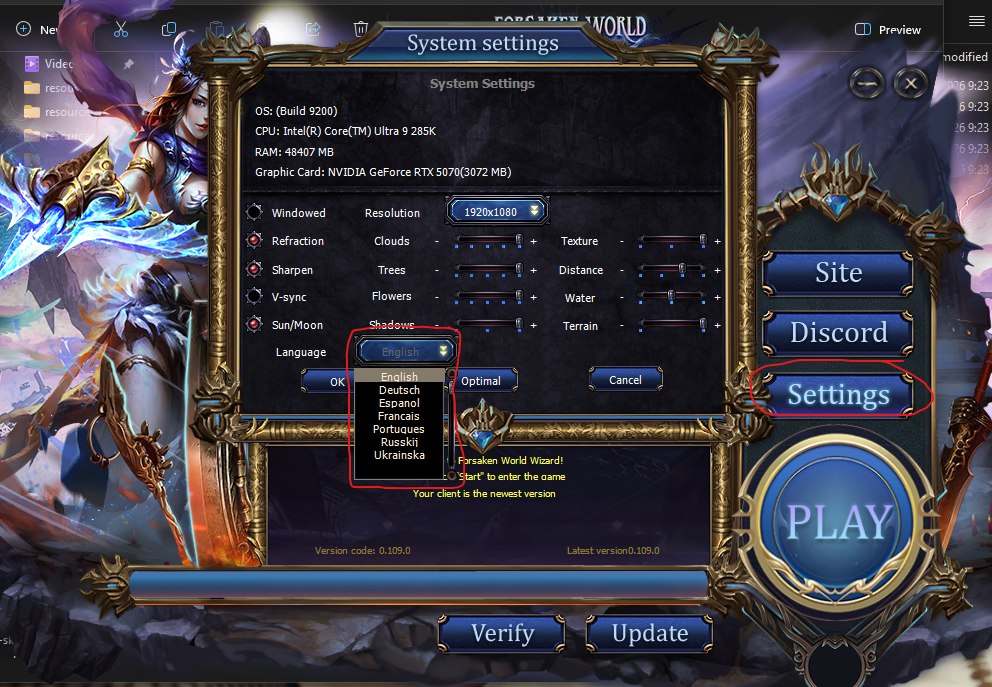
Pick a new language from the list, hit OK — patcher downloads the language pack (if it hasn't already) and restarts.
Right next to it there's an Optimal button — we recommend hitting it the first time you open Settings. The launcher checks your graphics card, CPU, and RAM and sets the graphics options so the game both looks good and runs smoothly. Later you can fine-tune things by hand, but Optimal is a great starting point.
Checking the Version and Playing
Everything is set up — now you see the main Wizard menu:
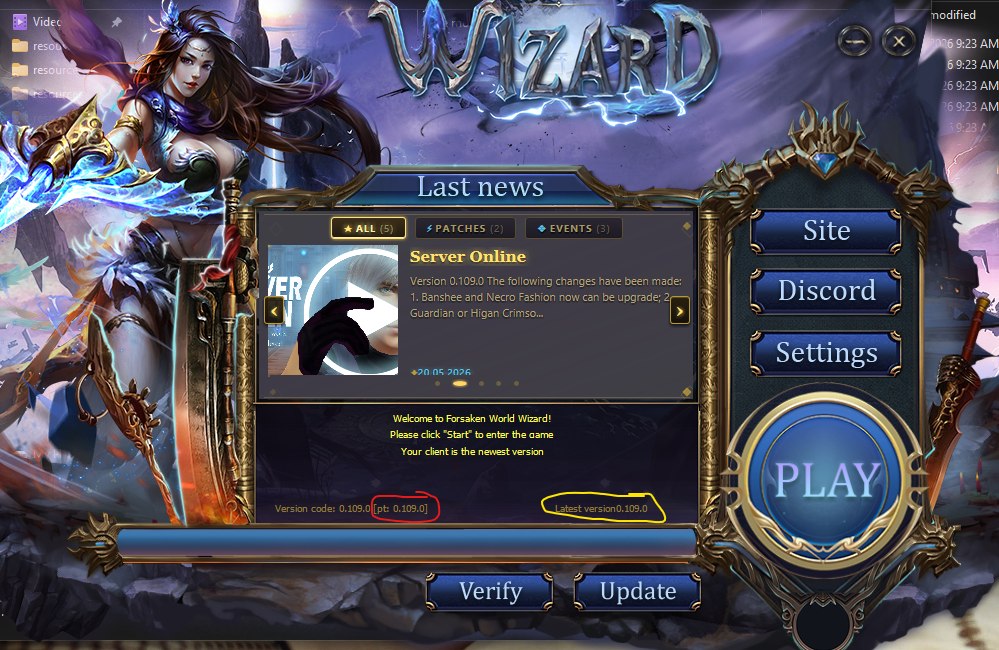
At the bottom-left you'll see two numbers: Version code (your current version) and Latest version (the newest version on the server). The square brackets next to the client version show the separate language-pack version — [pt: …] for Portuguese, [ru: …] for Russian, and so on. The English client shows no brackets because it doesn't need a language pack.
If both numbers match — hit the big blue PLAY button and you're in.
If they differ — the Update button lights up at the bottom. Click it, wait for patcher to download the difference, then PLAY. (Routine patches are usually small — often under 50 MB.)
Support
If nothing above helped — come hang out in our Discord, someone's always online and happy to help figure things out:
- Discord: https://discord.gg/BtXQ4rtHwN
- Site: https://fw-wizard.com
Good luck out there, see you in Eyrda ⚔️